Homepage
The homepage is the starting point of your experience, offering a comprehensive overview of everything essential to our application.
Access detailed information for each section below to optimize your experience.
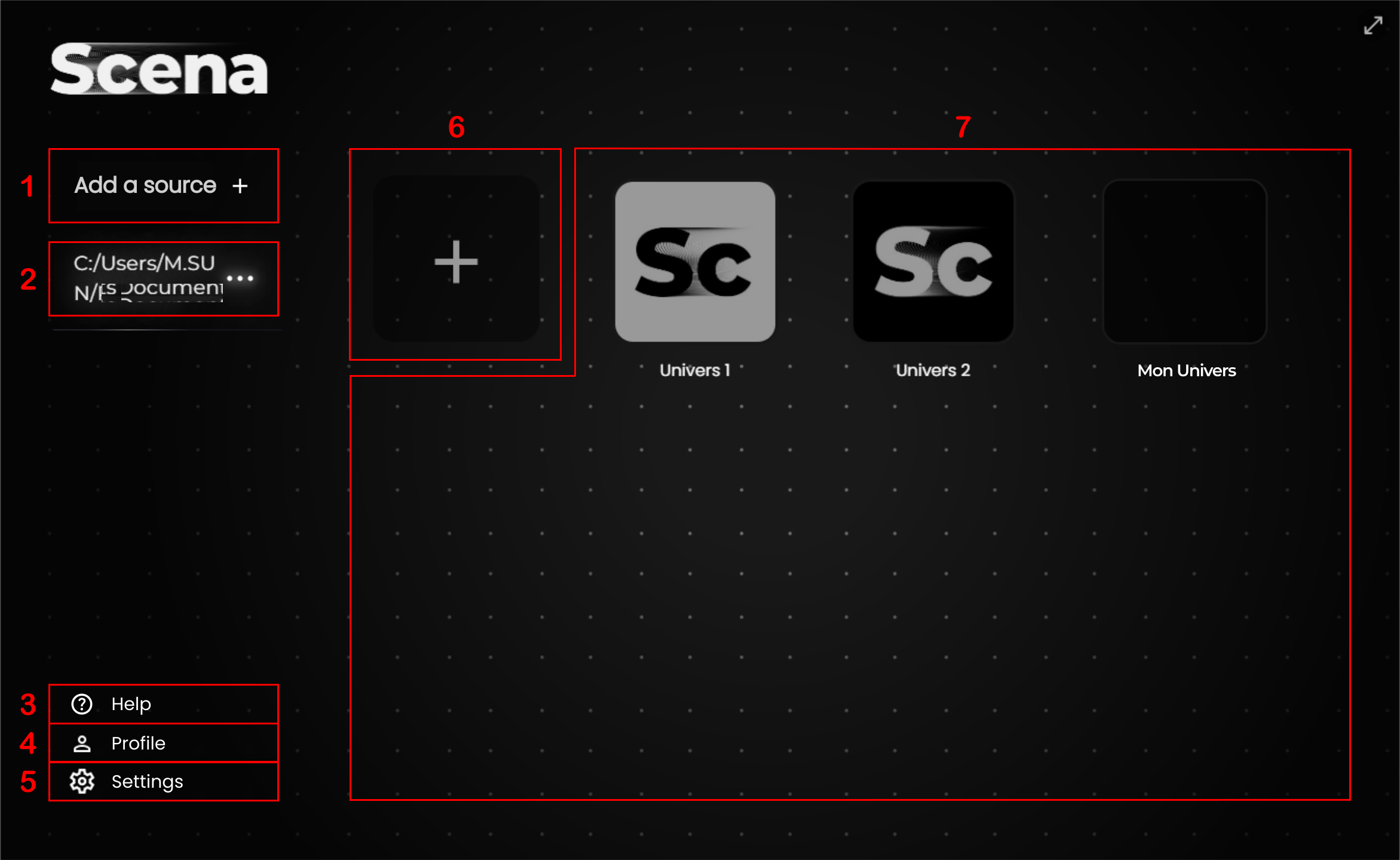
Number |
Section Title |
Description |
|---|---|---|
1 |
Add a Source |
Easily add new sources containing your workspaces |
2 |
Source List |
Browse through the list of your added sources |
3 |
Help Page |
Access the complete documentation and presentation of the application |
4 |
User Profile |
View and manage your user license information |
5 |
Application Settings |
Modify or activate certain application settings (Display language, virtual keyboard, action bar position, …) |
6 |
Blank Space |
Launch a blank workspace for quick annotations (draft) that won’t be saved |
7 |
workspace List |
Select and start a workspace from the listed workspaces |
Presentation Space
Discover the capabilities of the presentation space by exploring its features and uses in this section.
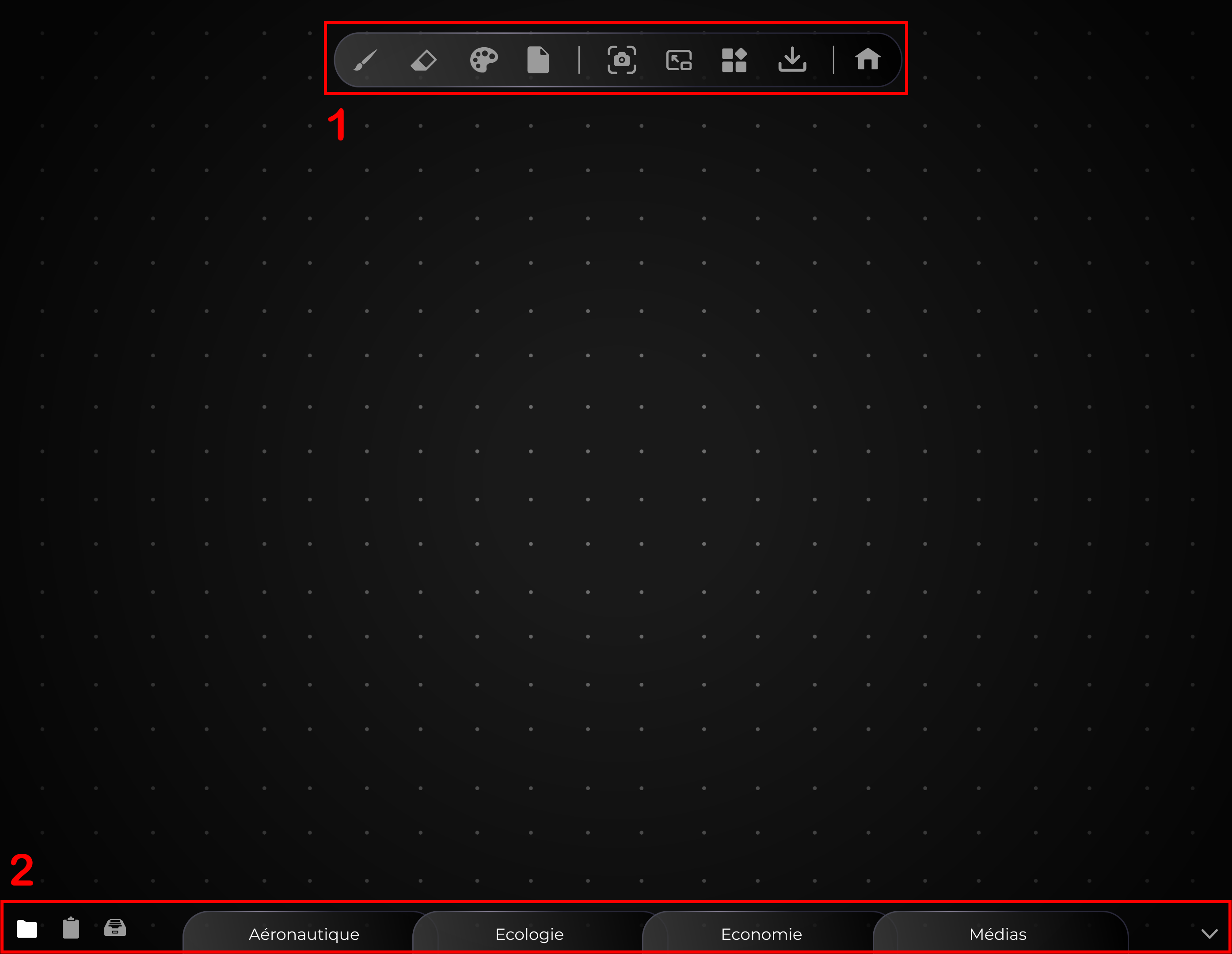
1. Top Action Bar
The top action bar lets you explore the main features of the application.

Name |
Icon |
Description |
|---|---|---|
Annotate |

|
Add annotations, drawings, and personalized comments on all your content for effective collaboration and visual communication |
Eraser |

|
Quickly and precisely erase annotations, providing total control over annotated content |
Colors |

|
Select from a wide palette of colors and different writing sizes to personalize your annotations, visually highlighting important information |
Blank Page |

|
Insert a blank page where you can take notes or make sketches using various annotation tools or stickers |
Screenshot |

|
Capture your entire screen or a selected area, then enhance these captures by adding annotations and relevant explanations |
Embed App |

|
Project your external applications directly into your Scena presentation space, enabling seamless integration of the tools/apps you use daily |
Widgets |

|
Use interactive widgets to display real-time information (clock, stopwatch, timer, webcam…) |
Import Docs |

|
Import all types of relevant documents during the presentation in case of need, ensuring smooth presentation continuity |
Home |

|
Return to the homepage to access the workspace selection |
2. Bottom Menu Bar
The bottom menu bar gives you full access to your content and activity.

Name |
Icon |
Description |
|---|---|---|
Library |

|
Access and explore all your content |
Resources |

|
Browse this section to access your bookmarked documents, favorite links, and recently viewed or closed content |
Activities |

|
Navigate through folders dedicated to your visual resources, including stickers, templates, screenshots, and imports |
Close |

|
Hide the bottom bar to optimize your workspace |
Content Menu
Documents
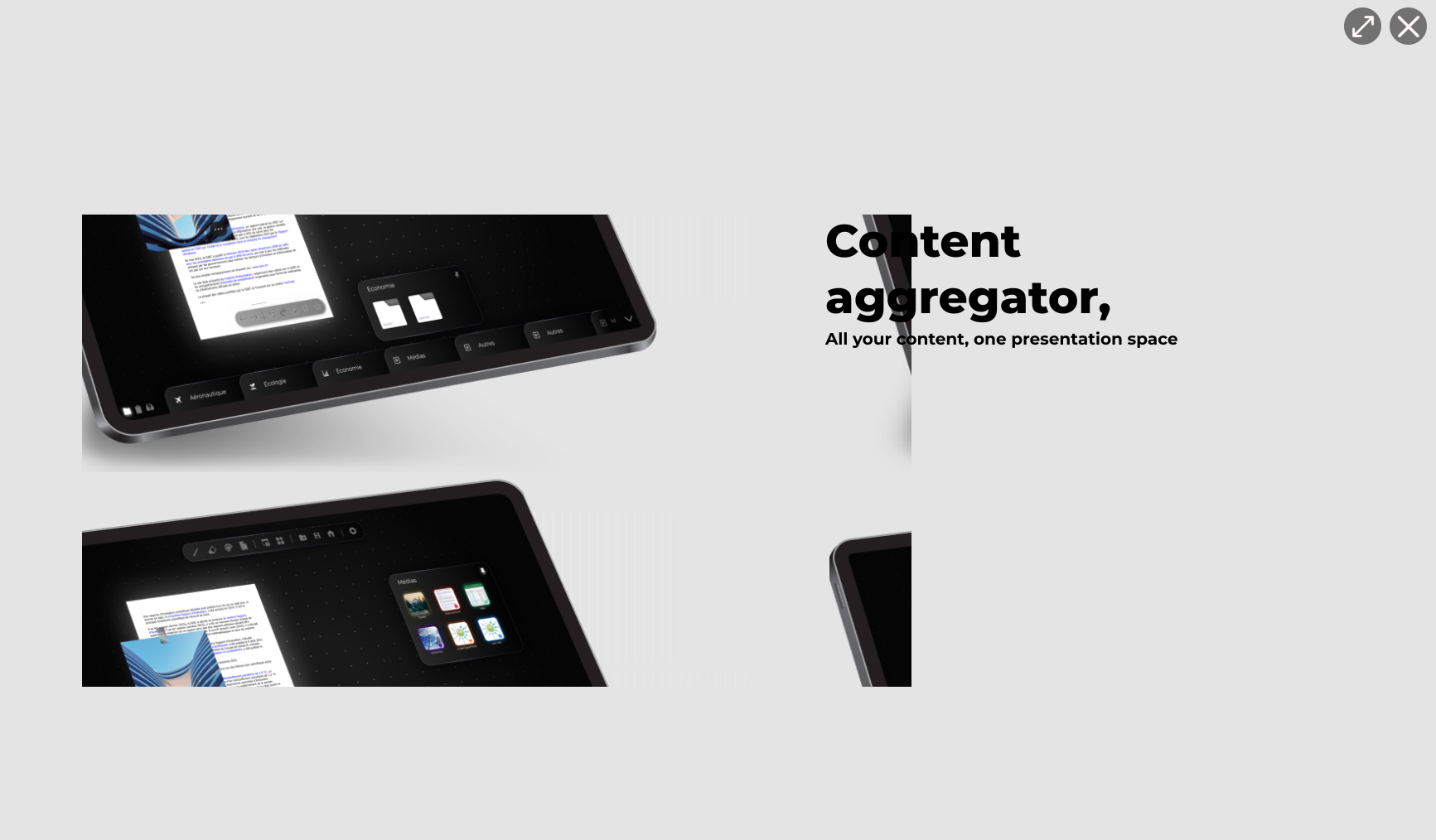
The content above is an example of a Microsoft PowerPoint document (.pptx)

Name |
Icon |
Description |
|---|---|---|
Previous Arrow |

|
Go back to the previous item with a simple click |
Next Arrow |

|
Navigate to the next item with one click |
Rotate |

|
Rotate your documents to get the desired view |
Bookmark |

|
Create practical bookmarks to easily find key points in your documents |
Favorite |

|
Mark important content for quick access |
Screenshot |

|
Take a quick screenshot of the current page, including annotations and stickers, for future reference |
Slide Mode |

|
Easily browse your slides in an exploded mosaic view, allowing for instant selection of the desired page |
Always in Background |

|
Keep content open in the background for continuous access without interfering with your main tasks |
Export |

|
Export your documents for sharing or use in other contexts |
Web Pages
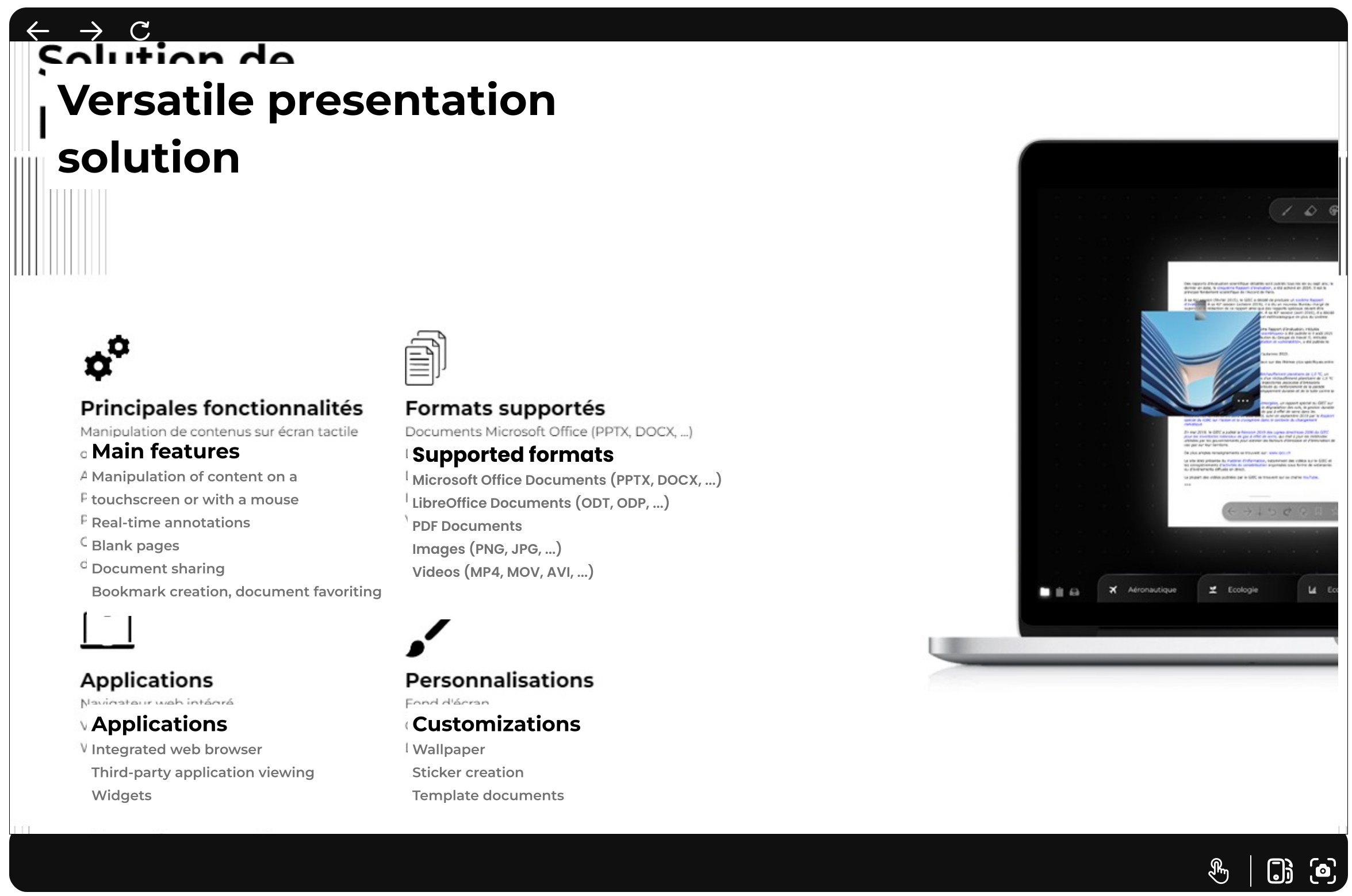


Name |
Icon |
Description |
|---|---|---|
Next Arrow |
|
Go to the next page |
Previous Arrow |
|
Go back to the previous page |
Refresh |

|
Refresh the web page to get a current view of the content |
Interact |

|
Interact with the web page content for a complete exploration |
Mobile Mode |

|
Switch to mobile display mode for browsing web pages optimized for vertical use, like instant messaging sites |
Screenshot |
|
Capture interesting elements from the web page, then add annotations to explain them |
Videos
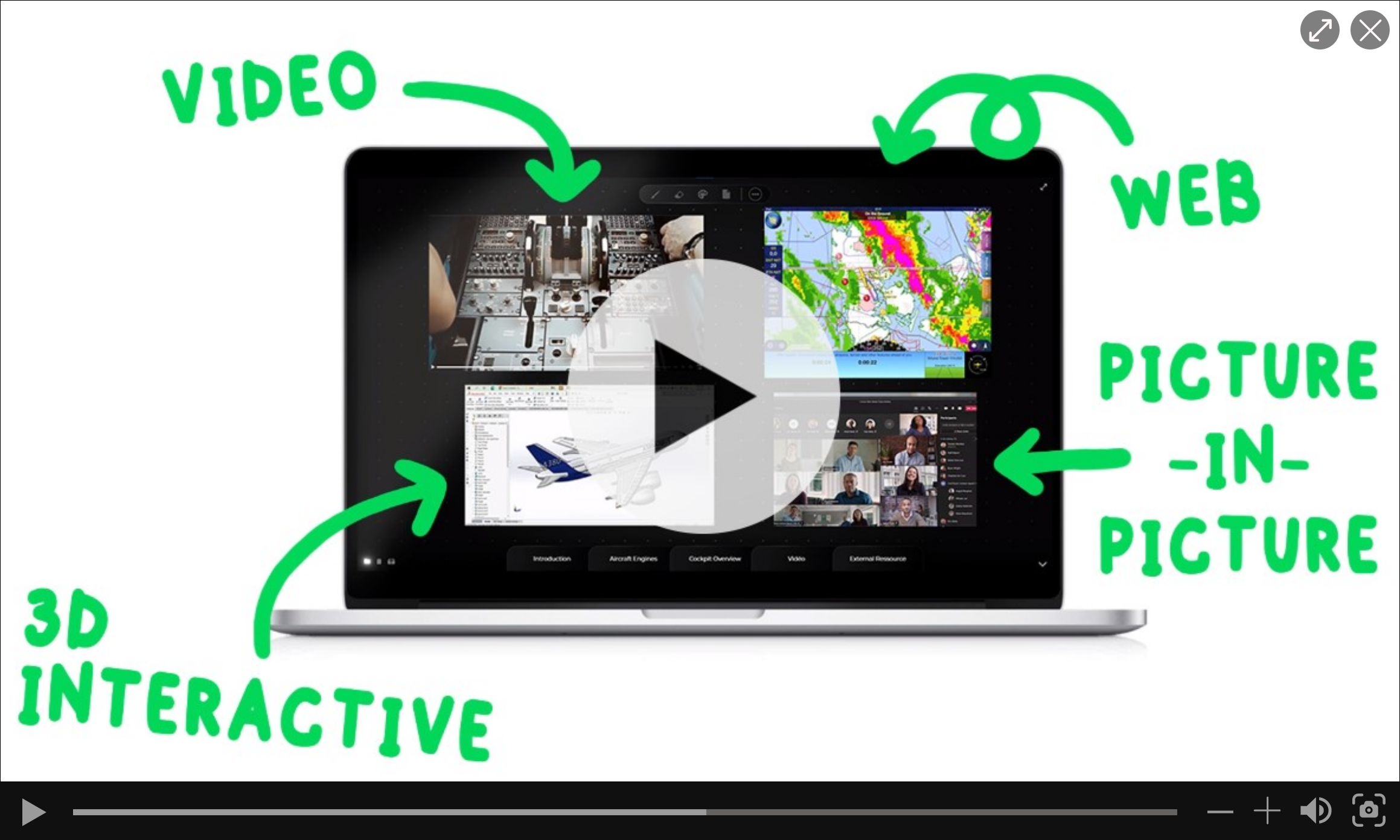
Name |
Icon |
Description |
|---|---|---|
Play |

|
Start playing your multimedia content |
Pause |

|
Pause the playback of the multimedia content |
Decrease |

|
Lower the volume easily with adjustable settings |
Increase |

|
Raise the sound level for better audio quality |
Mute |

|
Mute the audio completely for a full sound stop |
Screenshot |
|
Take screenshots from the video to extract visual images |