Customize your workspace

The background

By default, each Scena workspace has the same background.
However, if you prefer to use your own image as a background, follow these steps:
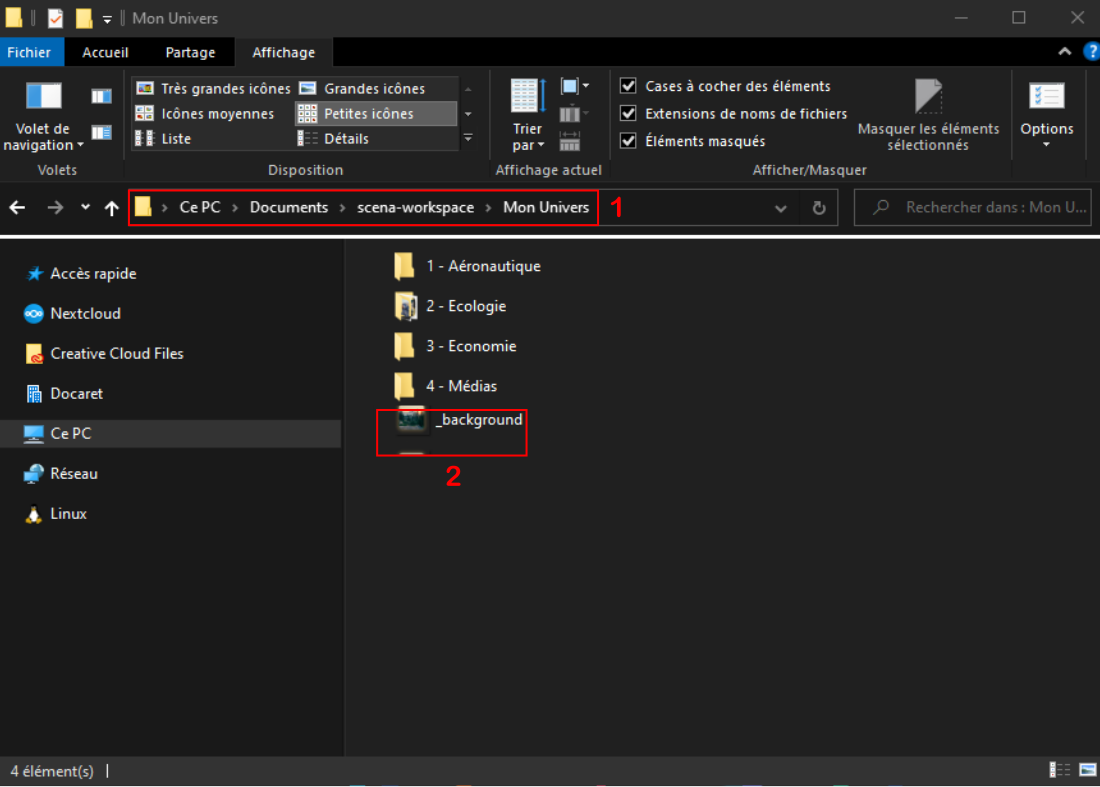
  1. Insert the image you want to use as a background at the root of your workspace

  2. Rename the image to: _background

background

(It is recommended to use a background image in PNG or JPEG format)


The display thumbnail of your workspaces

On the application’s homepage, you have the option to add a display thumbnail to each of your workspaces.
By default, no visual is assigned to your workspace’s thumbnail. Follow these steps to add one:
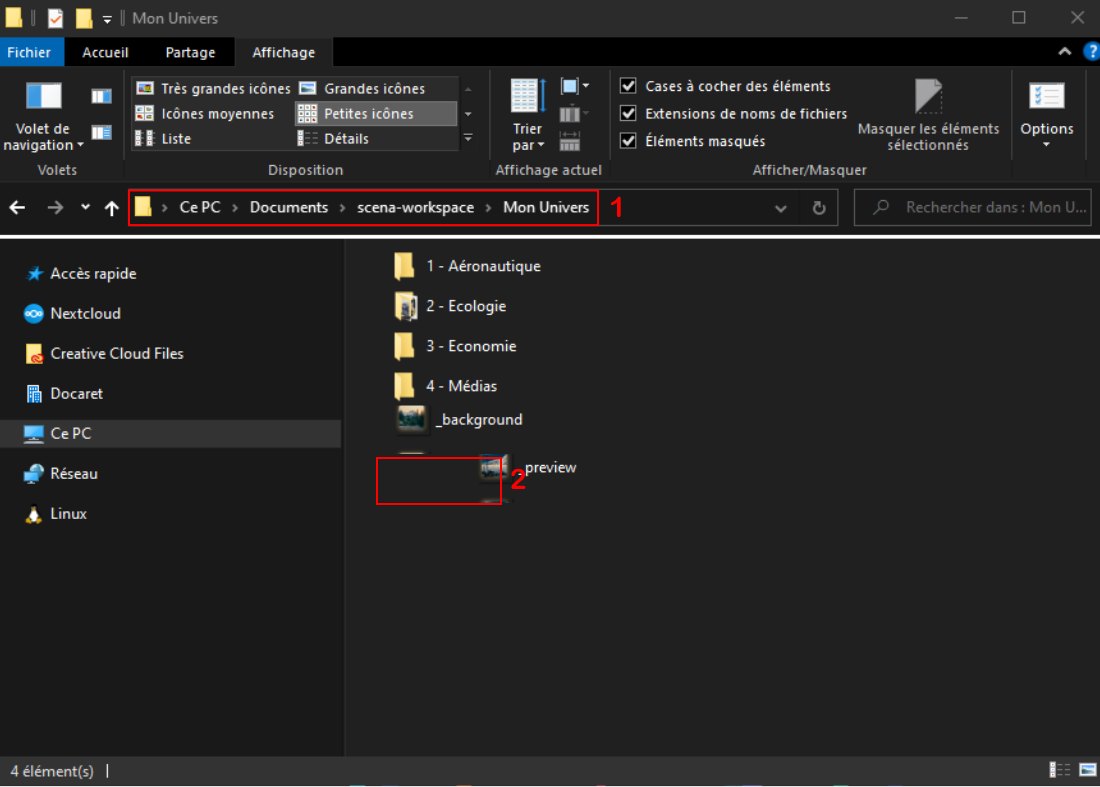
  1. Similarly, insert the image you want to use as a display thumbnail at the root of your workspace.

  2. Rename the image to: _preview

preview

(It is recommended to use a PNG or JPEG image format, preferably square, for your workspace’s display thumbnails)


Result:
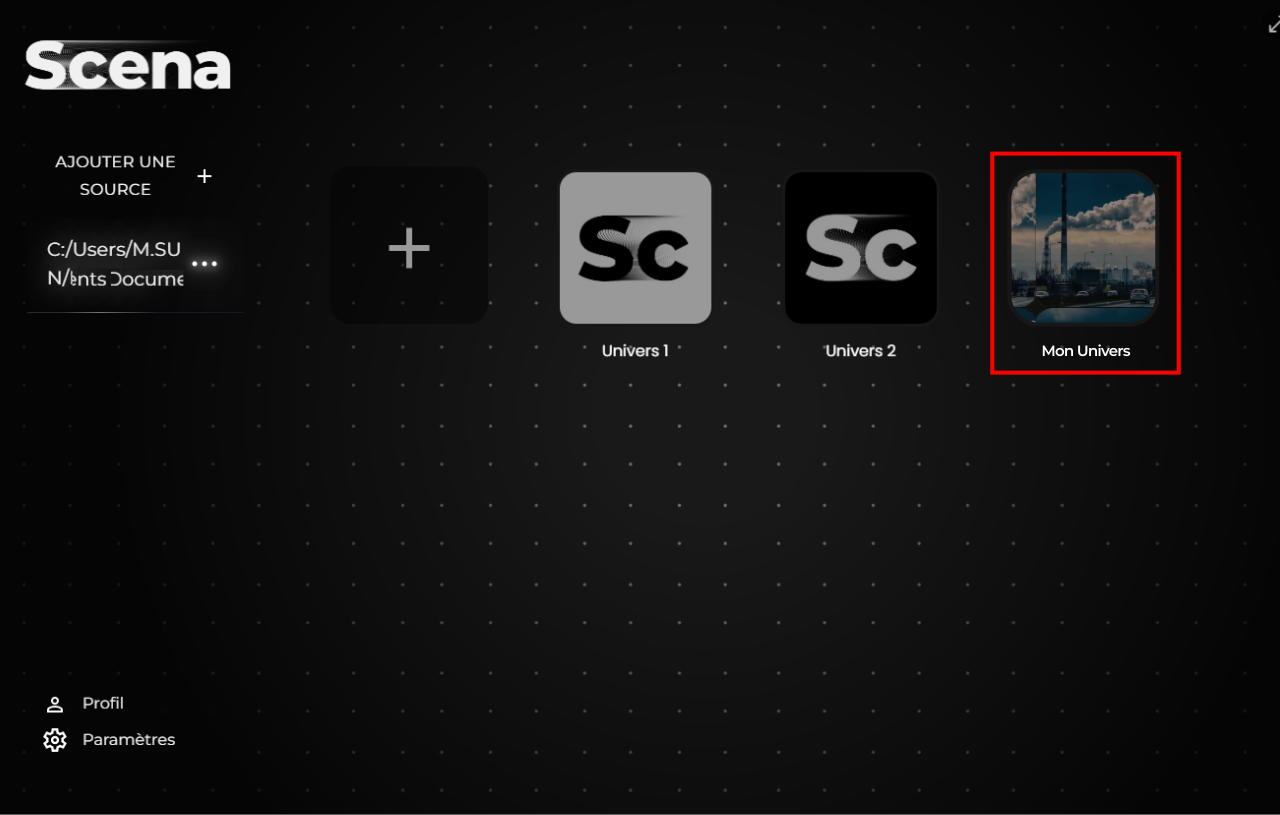
preview

Stickers

Stickers have specific characteristics that allow them to stick directly onto any content.
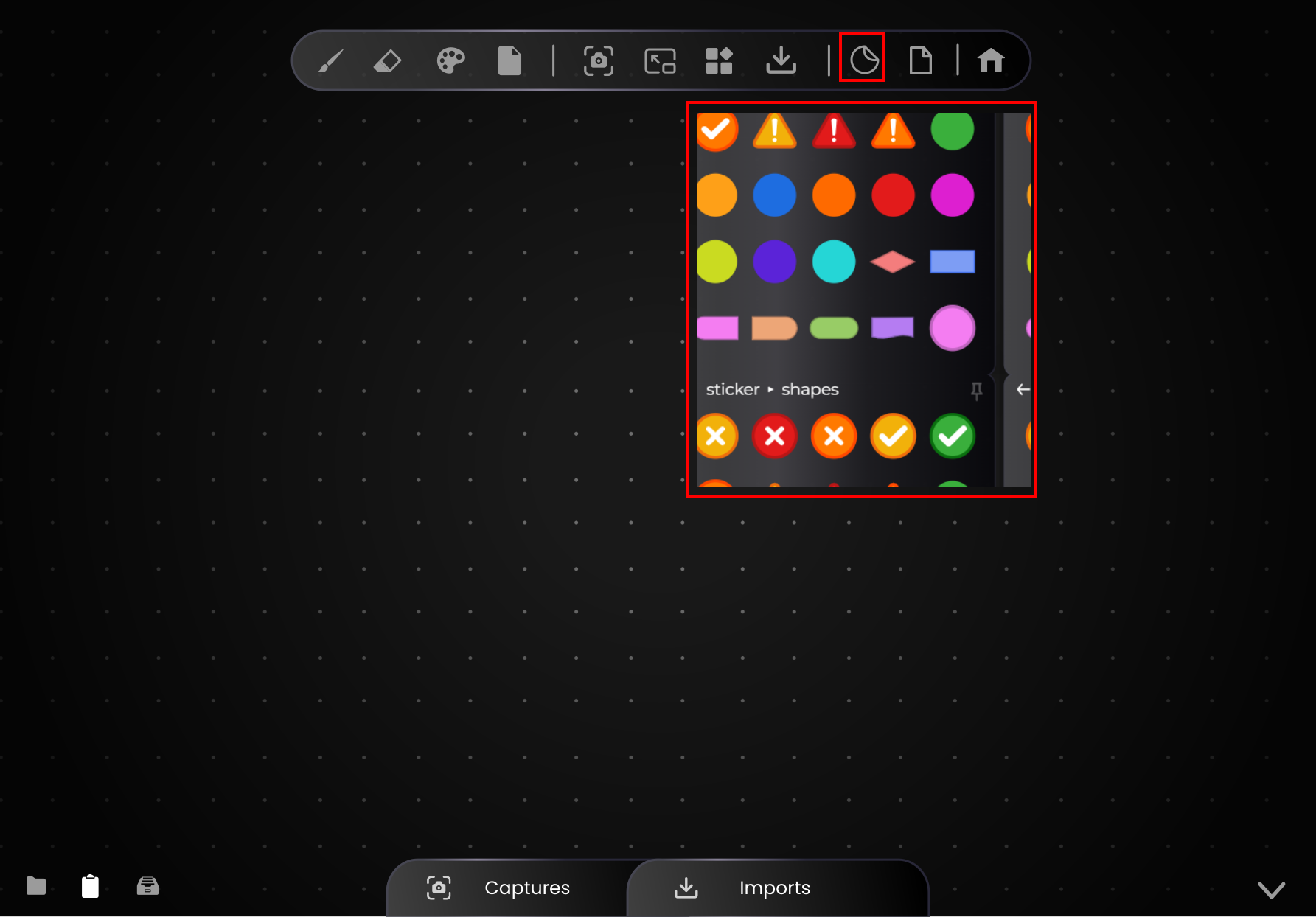
By default, in the Stickers folder, you will find stickers with basic simple shapes:
stickers
However, if you want to add your own stickers to this section, here are the steps:
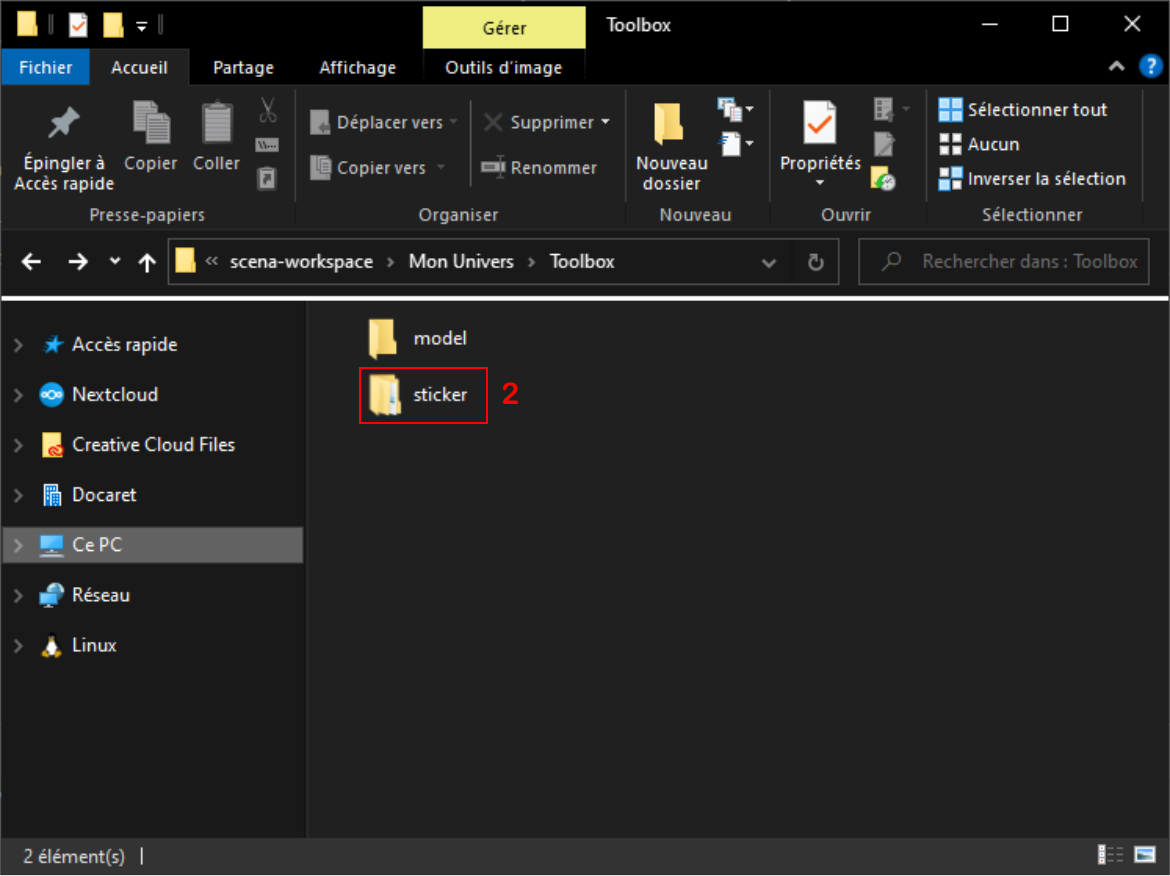
  1. Access the folder named Toolbox located at the root of your workspace

  2. Insert all the stickers you want to add into the sticker folder
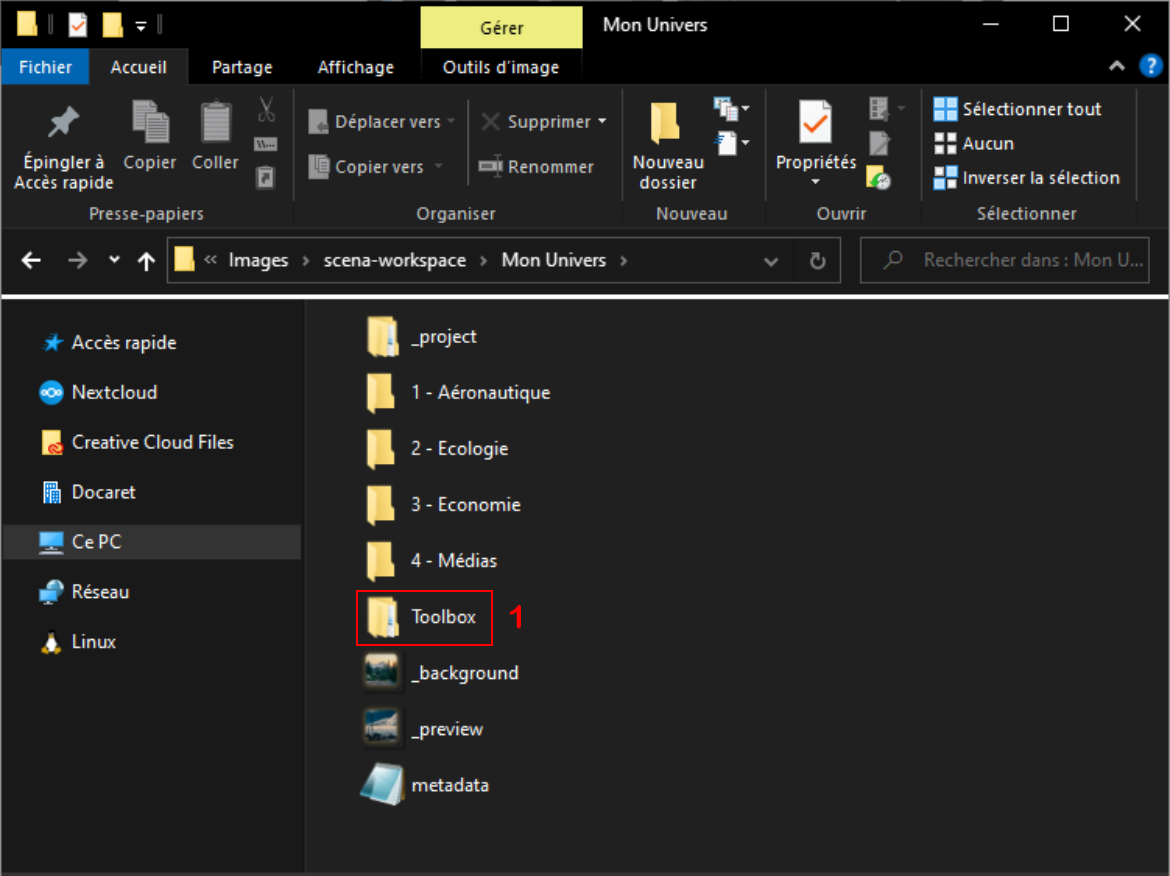
toolbox stickers2

(It is recommended that stickers be in SVG or PNG format)


Result:
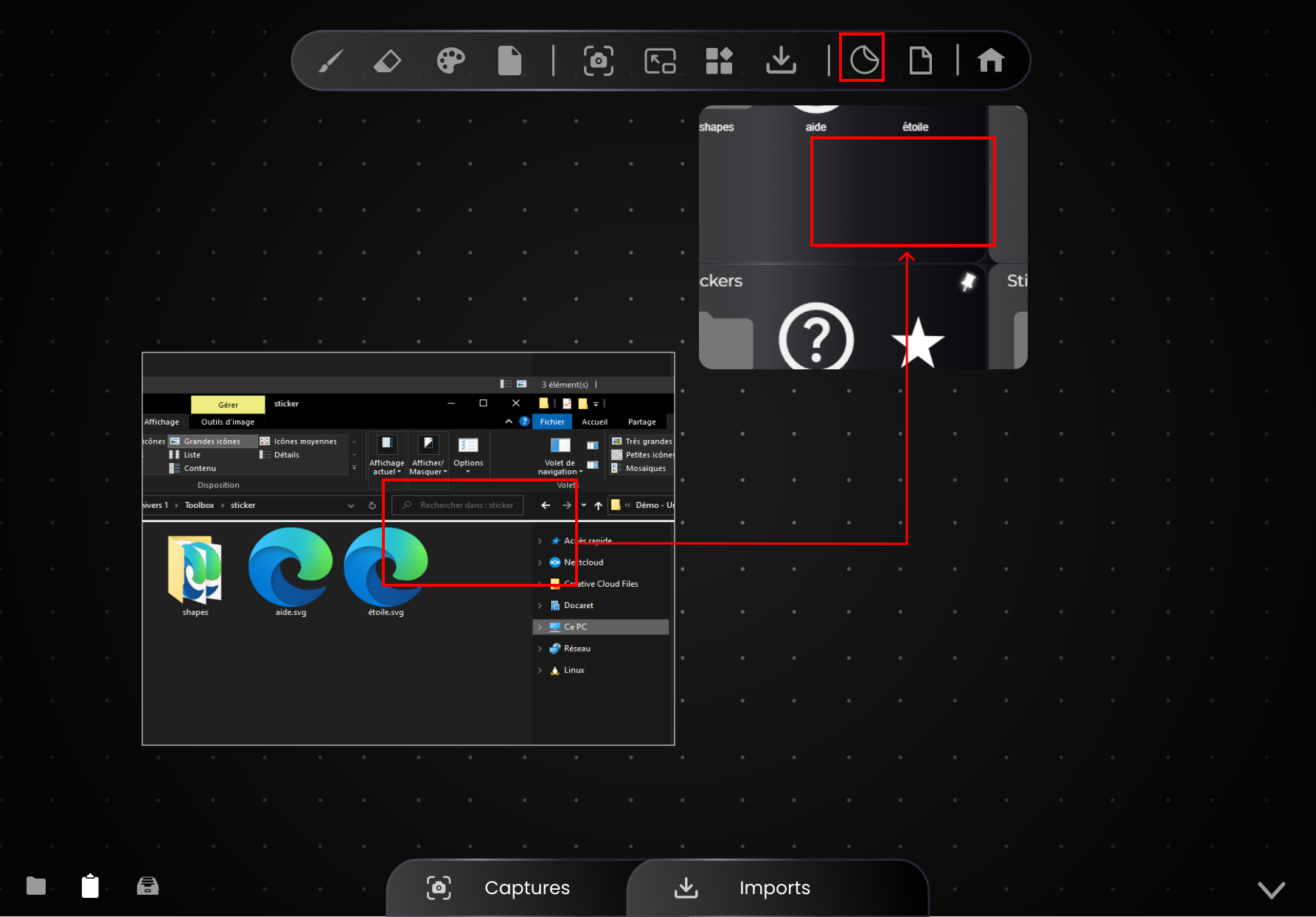
stickers3

Template Documents

Templates are frequently used content with specific characteristics that allow them to be opened as often as needed.
This can include, for example, a blank table, a form, etc.

Here are the steps if you want to add them to Scena:

  1. Just like for stickers, access the folder named Toolbox located at the root of your workspace

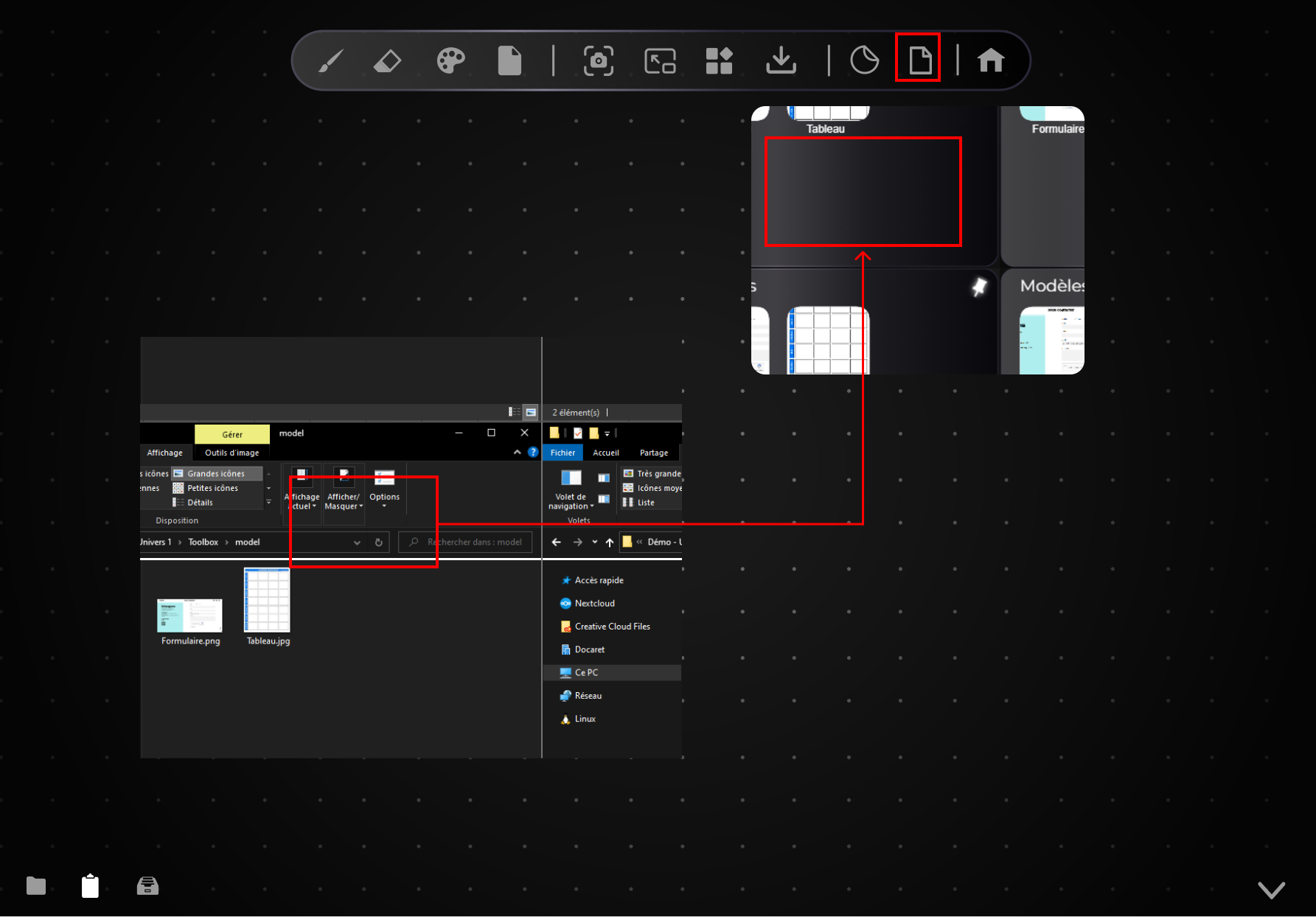
  2. Add the template documents you want to include in the model folder
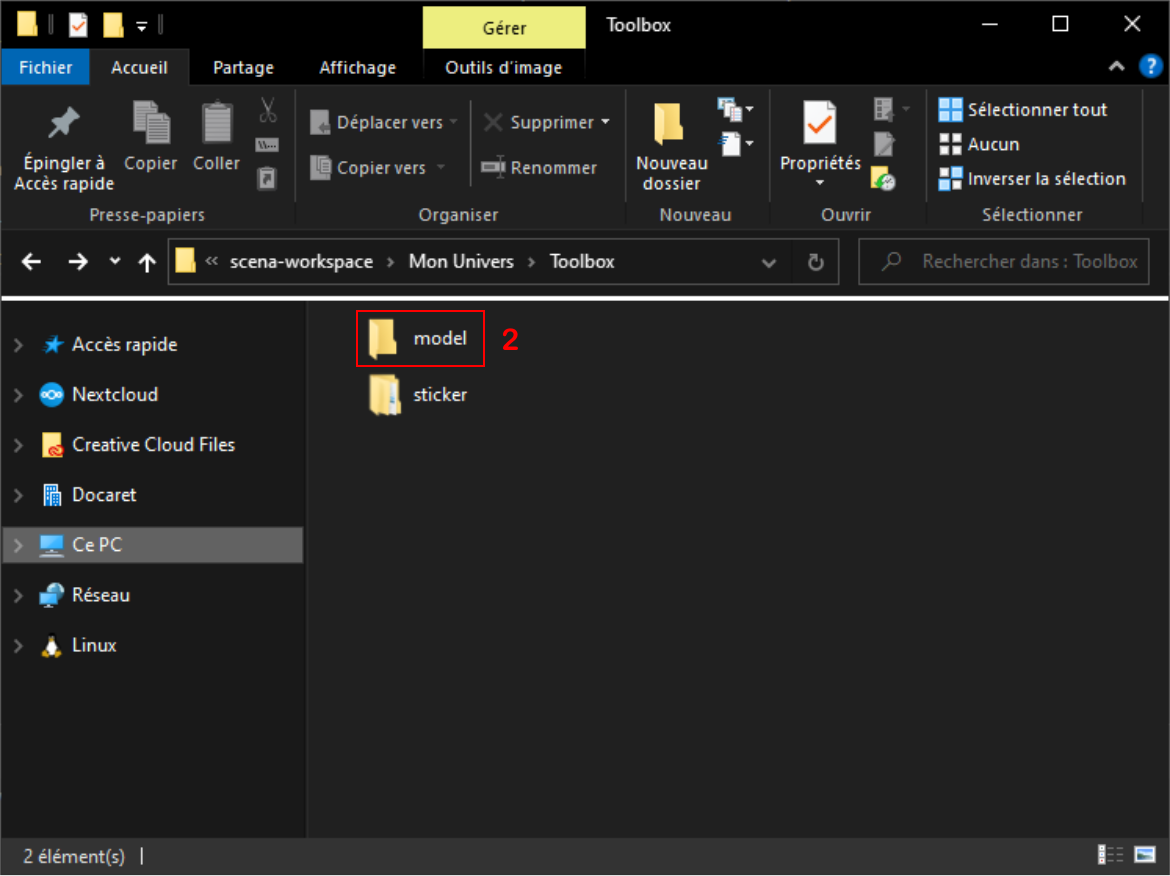
toolbox model

It can be any type of content (PDF Document, Word, PowerPoint, PNG Image, …)


Result:
model2

Hidden content

Hidden content allows you to “hide” certain files in Scena’s presentation space.
Although invisible in the display, these files are still included in the conversion processes, enabling, for example, hyperlinks to these files in presentations.

Here are the steps to hide one or more files:
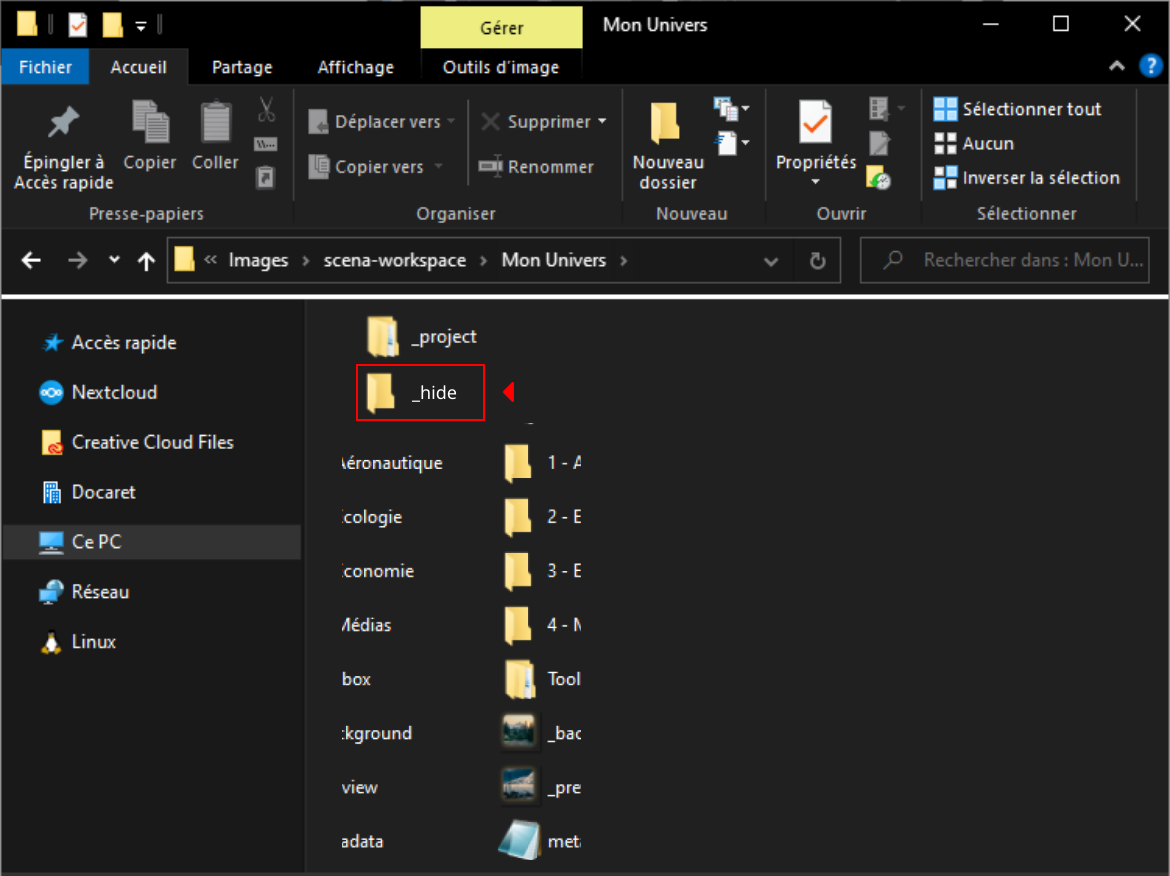
1. À l’endroit souhaité dans votre univers, créez un dossier : _hide
This **_hide* folder can be placed at the root of your workspace or in any other folder.*
2. Placez dans ce dossier les contenus (Documents Office/LibreOffice, images, vidéos, dossiers, etc.) que vous souhaitez masquer
hide

Ignored content

Unlike hidden content, ignored content allows you to completely exclude certain files or folders from Scena’s conversion processes.
This is useful for storing archives or content that you may need later, without impacting conversion time or appearing in the presentation space.

Follow these steps to exclude one or more files from Scena’s processes:
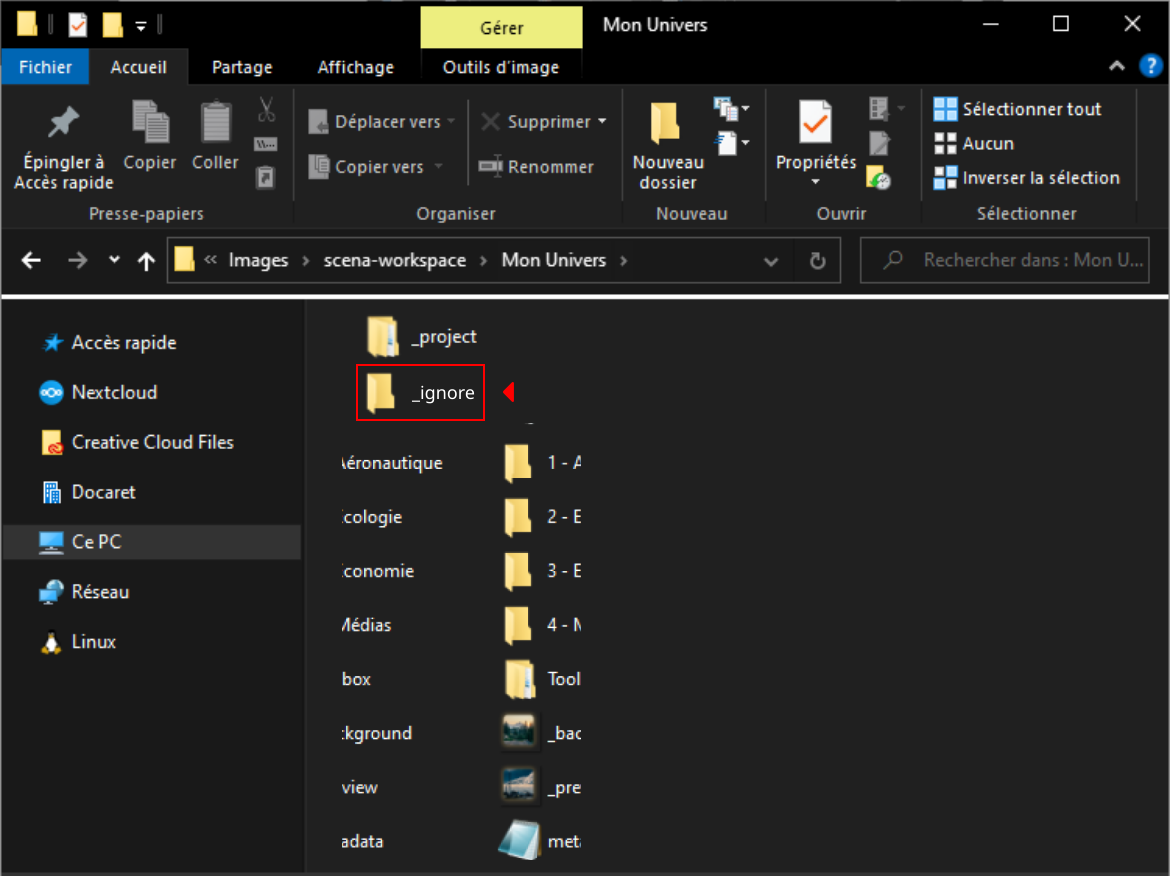
1. A l’endroit souhaité dans votre univers créez un dossier nommé : _ignore
This _ignore folder can be placed at the root or in any other folder.
2. Placez dans ce dossier tous les fichiers ou contenus que vous souhaitez ignorer
ignore